In this guide
To print coloring pages on A4 or US Letter paper, download the file and open it in a PDF or image viewer. Select the paper loaded in your printer, choose Fit, and check that the whole drawing appears in the preview. Print one sheet before making more copies.
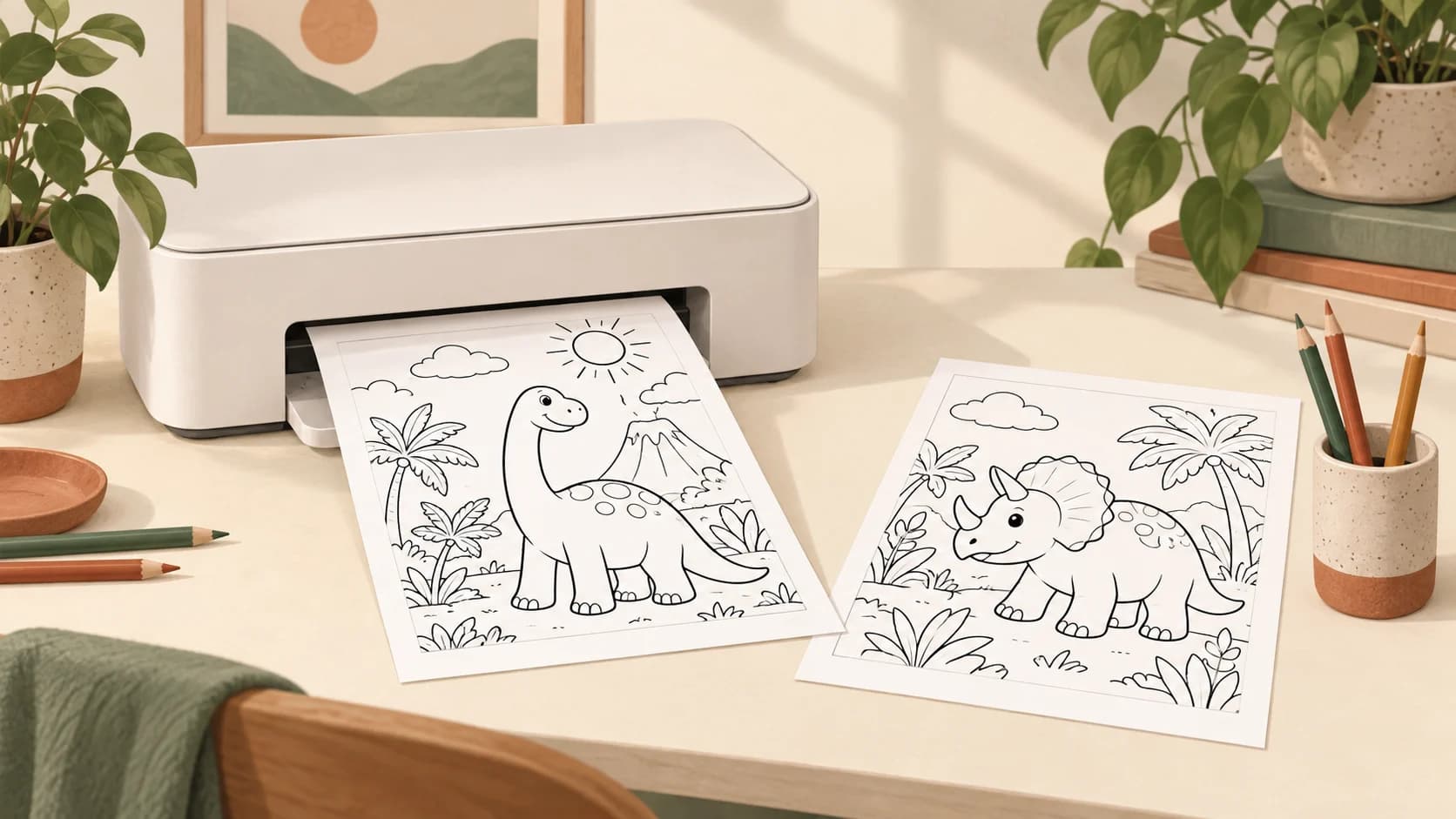
You can use the four-page Dinosaur Adventures PDF below to try these settings, or follow along with your own download.
1. Start with the downloaded file
Use the PDF download when one is available. It gives you a document with defined pages that you can inspect before printing. Open the PNG in an image viewer if that is the format you have.
A screenshot of the website can include buttons, a smaller preview, or only part of the artwork. Print the downloaded file instead of the web page. Check that it opens completely and shows the picture you intended to use.
You can get individual PNG and PDF files from Free Coloring Pages without signing in. Your generated work is available through My Pages after sign-in. A CPages coloring book has a separate complete-PDF download.
2. Match the paper setting to your printer
A4 paper measures 210 × 297 mm. US Letter measures 8.5 × 11 inches. Select the size loaded in your printer. If the PDF uses a different size, the scaling setting determines how it fits the sheet.
Check the orientation too. Portrait suits a tall drawing; landscape suits a wide one. In the preview, make sure that the picture is upright and that no part of its outer outline disappears past the paper edge.
A complete CPages coloring book downloads as a US Letter PDF. Individual coloring page downloads can have other proportions, so check the page size in your PDF viewer before printing.
3. Choose Fit, then inspect the preview
In Adobe Acrobat, open Print, then select Size under Page Sizing & Handling. Choose a scaling option:
- Fit adjusts the page up or down to the paper's printable area.
- Actual size keeps the document's original scale. Content that cannot fit may be clipped.
- Shrink oversized pages reduces pages that are too large, but does not enlarge smaller ones.
Adobe's page-sizing instructions explain these options. Other viewers and printer dialogs may use different names.
Start with Fit for a full-page coloring activity. If you need the drawing at its original dimensions, choose Actual size and check that the edges fit inside the preview.
Choose one document page per sheet for a full-page activity. A multiple-pages-per-sheet setting makes each drawing smaller; it is useful for small cards, but easy to overlook when you want a large coloring space.
4. Select the pages you actually want
The Dinosaur Adventures example PDF contains four portrait US Letter pages: a color cover followed by three black-and-white coloring pages. Each PDF page measures 8.5 × 11 inches.
Select pages 2 to 4 for the coloring activities, or pages 1 to 4 to include the cover. Start with page 2 as a single-sheet check before printing the remaining pages or extra copies.
For A4 paper, keep the printer's paper selection on A4 and choose Fit even though this PDF uses Letter pages.
To make a book like this with your own theme, follow the free AI coloring book walkthrough.
5. Check one sheet before printing the rest
Inspect the outer edges, the smallest coloring spaces, and the darkest lines on your first sheet. Keep that check at the size you plan to use for the activity.
- Part of the drawing is missing
- Confirm the paper size, orientation, and scaling. Compare the print preview with the downloaded file to see where the crop begins.
- The picture is much smaller than expected
- Check pages per sheet and any custom scale. White space already inside the PDF remains part of its layout; Fit does not remove that internal margin.
- The lines look faint or rough
- Compare the file with the sheet. If the file is clear, check the printer's quality settings and ink or toner. If the file itself has weak or broken lines, changing the paper setting will not repair the drawing.
- The sheet has too many tiny spaces
- That is a content or detail-level issue. See how to simplify a busy AI coloring page before making another version.
Start with single-sided printing for loose coloring sheets. If you want to use both sides, try your coloring materials on one sheet first and check the back.
Once the sample sheet is right, use the same paper, scaling, and page-selection settings for the remaining copies.
Questions before you start
Can I print a Letter PDF on A4 paper?
Yes. Select A4 to match the loaded paper, use a fit-to-printable-area setting, and inspect the preview. The drawing may change size slightly, so check one sheet first.
Why does my coloring page have a white border?
A PDF can contain its own margins, and your printer may reserve space around the edges. Fit scales the whole PDF page into the printable area, including any white space already in the file.
Should I print the PDF or PNG?
A PDF is convenient when you want a defined page layout or several pages in order. A PNG can also be printed from an image viewer, but check its placement and scaling before printing.
Does a larger download guarantee a sharper print?
No. The source artwork, the physical print size, and the printer settings all matter. More pixels do not correct awkward shapes or broken outlines. Inspect the file and one printed sheet before making more copies.