In this guide
To make an AI coloring page less busy in CPages, choose a younger Age group when the coloring spaces are too small. If you want fewer objects in the scene, edit the description. If the downloaded file looks right but the print is clipped, check the print settings first.
The Text to Coloring Page tool uses Age group to guide line weight and detail, while your description tells it what to draw. Start with the problem you can see, then change one setting at a time.
1. Find what makes the page difficult to color
Look at the page at the size you intend to print it. A drawing can look attractive as a thumbnail and still contain spaces that are awkward to reach with a crayon.
- The scene is right, but the spaces are tiny
- Try a younger Age group. This guides simpler detail, broader coloring areas, and heavier outlines.
- There are more things than you want
- Edit the description. Name the main subject and the few background objects you actually want to keep.
- Outlines are broken, doubled, or confusing
- Review the downloaded file. These are drawing-quality problems; a different paper size will not repair them.
- The file looks fine, but the print is cropped or small
- Check paper size and print scaling before generating again. Use the A4 and Letter printing guide.
2. Use Age group for the level of detail
CPages has four Age group options, from large simple shapes for younger children to finer detail for adults. Choose a group based on the person who will color the page, then check whether the result gives them enough room.
If you like the scene, keep the description and Page shape unchanged. Try a younger group and compare the coloring spaces and outlines with your first version.
Age group guides the detail around the objects you requested. A fox with six butterflies still asks for six butterflies at a simpler detail level. To have only one butterfly, change the description.
The four Age group examples show the intended range. A new generation can also change the pose and layout.
3. Edit the scene only when you want less in it
A long list of characters and scenery gives the generator a lot to fit on one page. Keep the subject, its action, and the setting that matters. Remove details you would be happy not to see.
For example, this description asks for many separate elements:
A fox reading a book in a forest with several trees, six butterflies, mushrooms, flowers, and a picnic basket.
If the extra scenery is the problem, you could instead write:
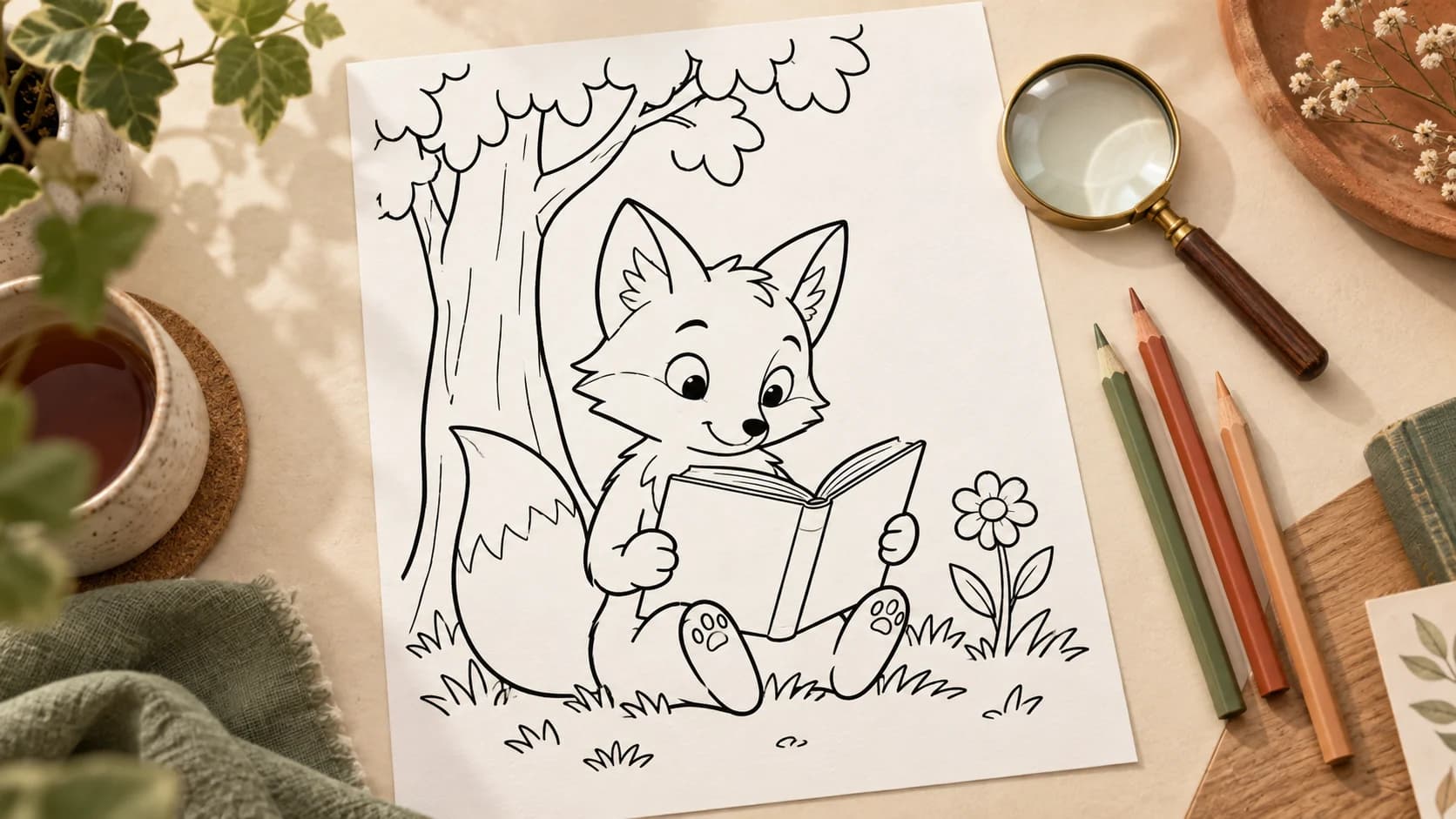
A fox reading a book under one tree, with one flower beside it.
The shorter prompt asks for fewer objects. Keep your chosen Age group for the level of detail; the prompt can focus on what belongs in the picture.
Be specific about what stays. “Make it simpler” leaves room for interpretation, while “one tree and one flower” describes a scene you can check. If you want the main subject alone, say so directly.
4. Check outlines before accepting a new version
Download the result and look beyond the main subject. Check small spaces around hands, paws, leaves, and objects that overlap. Those are easy to miss in a small preview.
- Can you tell where one object ends and the next begins?
- Are the spaces large enough for the coloring materials you plan to use?
- Do the main outlines connect clearly, without accidental gaps or doubled edges?
- Are there shaded areas that leave little room for your own color?
For a quick activity with crayons, favor large open areas. A person who enjoys a longer session with pencils may prefer the more detailed version.
5. Know what another generation will change
Each new CPages Text generation uses credits and creates a new image. The pose or composition can change along with the detail. Save the version you like before trying another.
To repair one small mark while keeping the exact drawing, use an image editor on the downloaded file. Generating again is better suited to trying a different version of the scene.
Check the displayed total before submitting, especially when selecting several pages or a different resolution. The plan comparison explains current credits and usage rights.
Check one printed page before making more
Once the file looks right, print one page at the size you will use. If the artwork is clipped, adjust the print settings. If the downloaded image itself has crowded or broken lines, return to the relevant step above.
Questions before you start
Should I put an age in the prompt as well as selecting Age group?
In CPages, select Age group for the detail level and use the prompt to describe the scene. Repeating an age or adding conflicting style instructions can make the request harder to interpret.
Will a younger Age group remove a busy background?
A younger CPages Age group guides simpler detail while keeping the requested objects. To reduce the number of trees, flowers, or characters, edit the description.
Does choosing a higher resolution make a page simpler?
No. Resolution concerns the delivered image size, not which objects belong in the scene or how many coloring regions you want. Use Age group and the description for those choices.
Can I keep the exact picture and simplify only one area?
Use an image editor on the downloaded file when you need to preserve the exact drawing. A new CPages Text generation creates another image and can change the composition.